
CSS Minifier and Beautifier: When to Minify, When to Beautify, and How to Avoid Breaking Your Layout
CSS optimization is one of the few performance wins that’s both simple and measurable, but it’s also easy to do wrong. If you minify the wrong file, or minify twice through caching plugins, you can end up debugging a layout that “randomly broke” with no obvious clue why.
This guide shows the practical workflow: how to minify for speed, how to beautify for troubleshooting, how to strip comments safely, and how to verify nothing changed visually.
Use the tool near the top: https://networkwhois.com/css-minifier
Last updated: January 16, 2026
What minifying CSS actually changes
Minification should not change behavior. It removes characters the browser doesn’t need:
• extra whitespace and indentation
• line breaks
• comment blocks
• sometimes redundant formatting
What it should not change:
• selectors
• declarations
• ordering (unless a tool does aggressive optimization, your tool is a minifier, not a rewriter)
If your layout changes after “minify”, the usual cause is not minification itself. It’s invalid CSS, broken comments, or a pipeline issue like double processing.
Step 1: Minify CSS for production
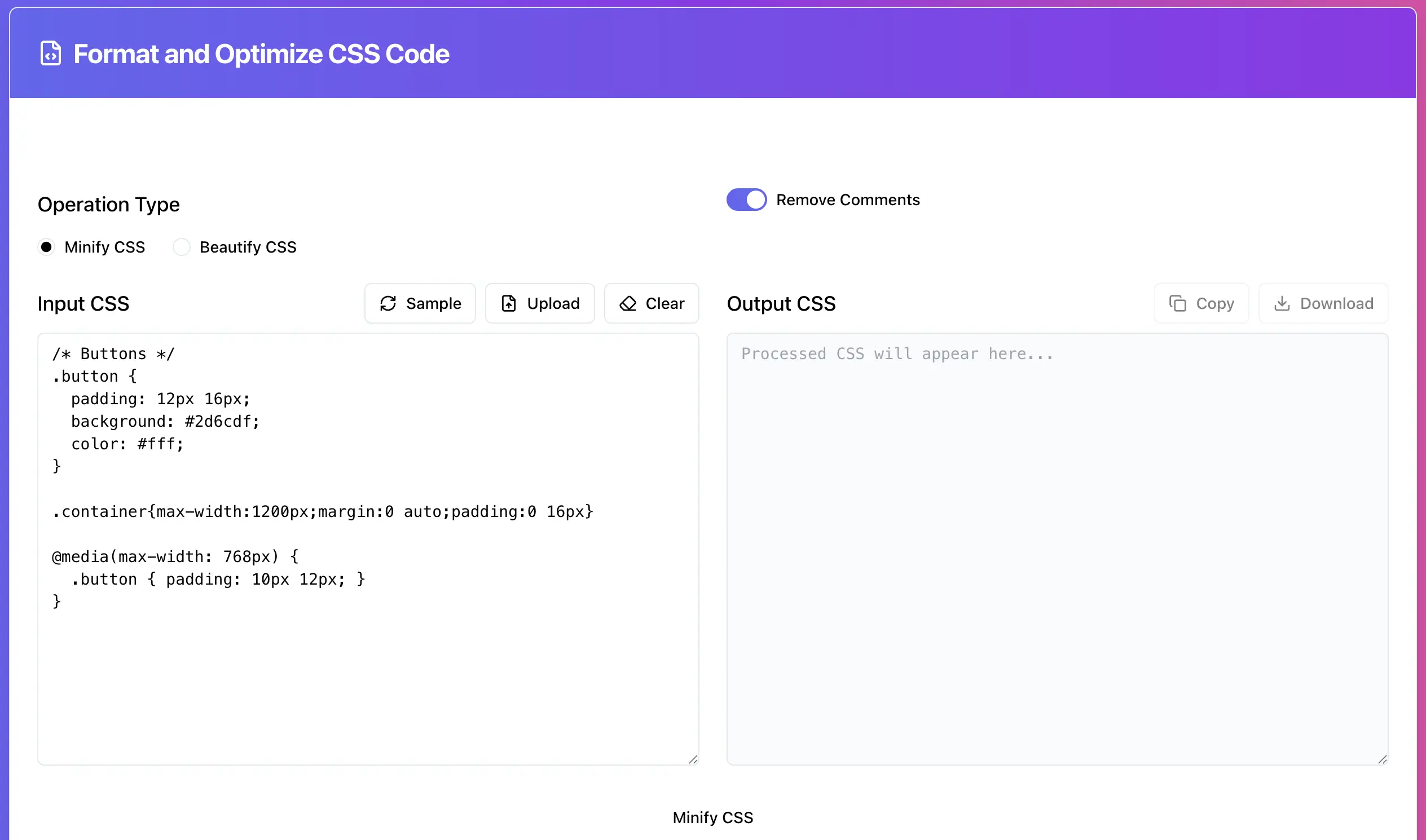
A simple before and after
Input:
/* Buttons */
.button {
  padding: 12px 16px;
  background: #2d6cdf;
  color: #fff;
}

.container{max-width:1200px;margin:0 auto;padding:0 16px}

@media(max-width: 768px) {
  .button { padding: 10px 12px; }
}
Minified output will look like:
.button{padding:12px 16px;background:#2d6cdf;color:#fff}.container{max-width:1200;margin:0 auto;padding:0 16px}@media(max-width:768px){.button{padding:10 12px}}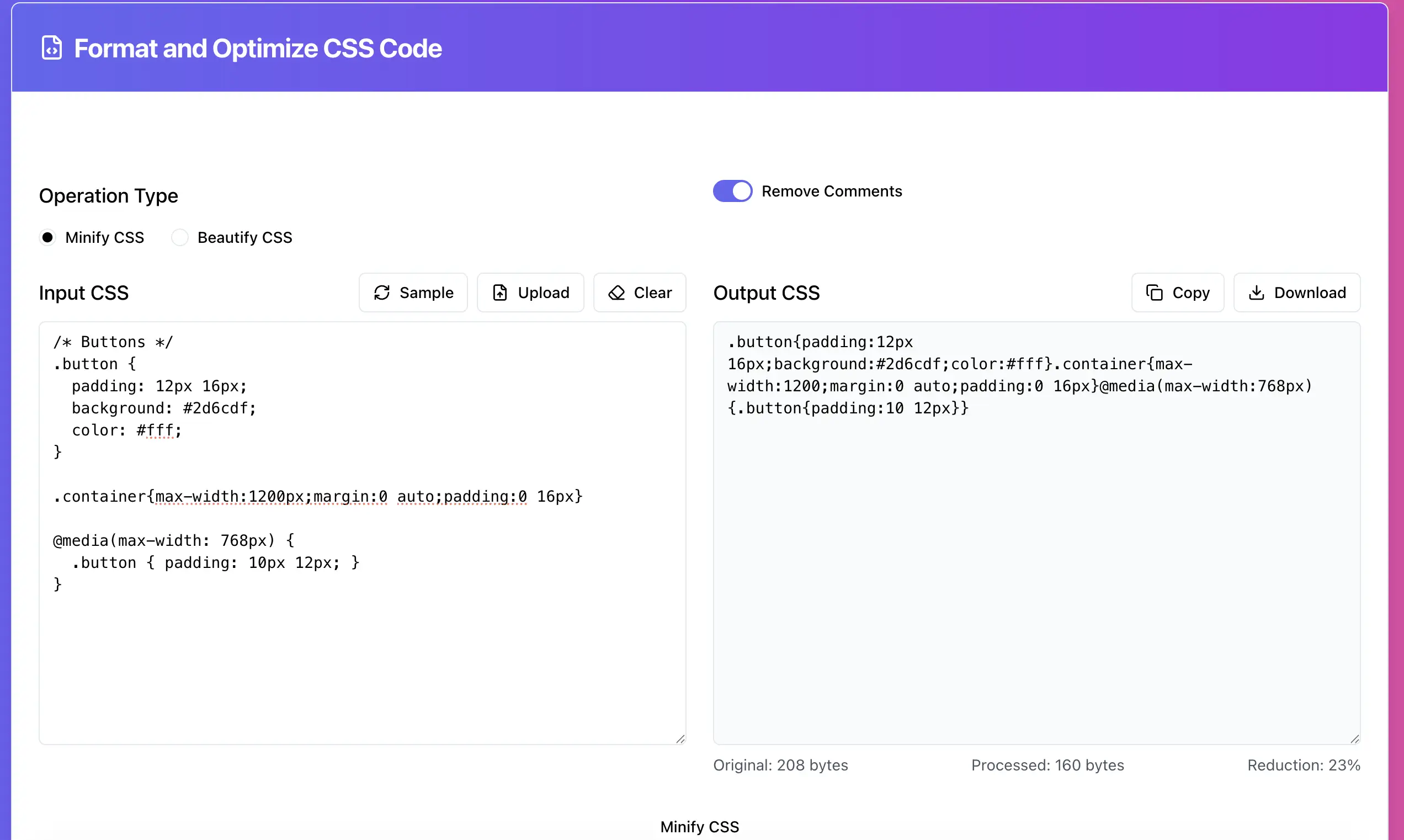
Where minified CSS actually matters
Minify is most useful when:
• you ship big CSS files from themes/plugins
• you serve multiple CSS files and want smaller total payload
• your audience includes mobile users and slower connections
If your CSS is already tiny, the win is smaller. Still fine, just don’t turn it into a ritual.
Step 2: Beautify CSS when you need to debug
Beautify is the “reverse painkiller”. It doesn’t speed up the site, it speeds up you.
Typical moment you need it:
• You pasted a minified CSS chunk from a plugin.
• You need to find which selector overrides your rule.
• You want to quickly scan a media query or a component block.
Input:
.header{position:sticky;top:0;z-index:999}.header a{color:#111;text-decoration:none}Beautified output:
.header { position: sticky; top: 0; z-index: 999; }
.header a { color: #111; text-decoration: none; }
Step 3: Remove comments safely
Removing comments is usually safe, but there’s one real-world trap: some build systems and some old libraries use “special” comments for directives or licensing.
Good use cases:
• you want a cleaner file for sharing
• you want to reduce size but keep formatting readable
• you want to strip large theme headers before pasting into a ticket
What to watch for:
• comments used as markers in your pipeline
• license comments you may be required to keep
WordPress workflow that doesn’t break things
WordPress is where people mess this up the most, because caching plugins already do minification.
Rule 1: Do not double-minify
If your caching plugin minifies CSS, do not manually replace theme CSS with a minified version and then minify again. The result can be:
• hard to debug
• weird whitespace edge cases
• broken sourcemaps or debugging context
Rule 2: Keep a “source” copy
Best practice is always:
• keep readable CSS in source control
• minify only when deploying or generating production assets
Rule 3: Validate visually, fast
After deploying minified CSS:
• check header, footer, forms, buttons, nav menu
• check one page on mobile width
• check one page with a complex layout (product page, blog post with blocks)
If something breaks, beautify the version you deployed and diff it against the original. Usually you’ll find invalid CSS, not “minify issues”.
Troubleshooting: when output looks wrong
Problem: output is empty or stops mid-file
Most common causes:
• unterminated comment (/* without */)
• missing closing brace }
• broken @media block
Fix workflow:
1. Beautify the CSS first, so the structure is readable
2. Find the broken block
3. Fix the invalid CSS
4. Minify again
Problem: layout changed after minify
Common causes:
• you swapped file order, not just minified it
• you removed a file you thought was unused
• the caching plugin served an older cached CSS file
Fix:
• clear cache and CDN
• confirm the right file is being served
• confirm the CSS order is identical
Try it now
Minify for production, beautify for debugging, or remove comments safely: https://networkwhois.com/css-minifier
Admin User
Author