
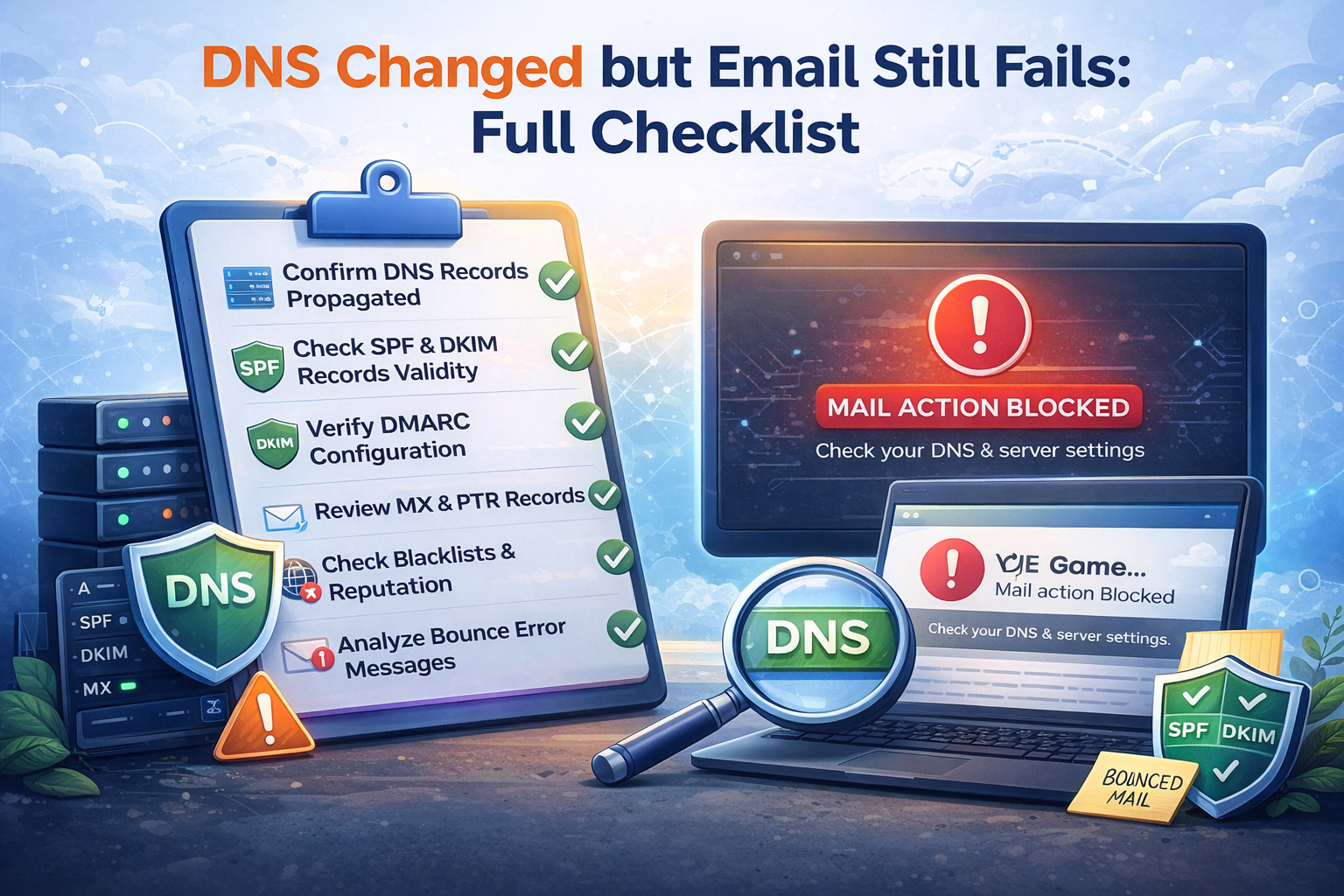
Changing DNS is often the start of fixing email, not the end. Administrators update MX, SPF, DKIM, or DMARC, wait a little, and expect delivery problems to disappear immediately. Then messages still bounce, still go to spam, or still fail validation.
That usually means one of two things:
the DNS change has not propagated where it matters yet
another part of the mail setup is still wrong
Step 1: confirm the records actually published
Do not assume the DNS control panel reflects what resolvers are seeing. Check the live records first with DNS Records Lookup.
Confirm:
MX records point to the intended mail host
SPF exists on the correct domain
DKIM selectors publish correctly
DMARC exists on
_dmarc
Even small mistakes in hostnames or selectors can keep mail broken after an otherwise correct-looking change.
Step 2: check whether propagation is the real issue
If the records are correct now but you changed them recently, use DNS Propagation Checker to see whether the updates are visible broadly.
This matters especially when:
you migrated mail providers
you rotated DKIM selectors
you moved inbound mail handling
you changed SPF includes
Propagation delays do not explain every issue, but they are a common reason for inconsistent results right after a change.
Step 3: validate the domain as a mail sender
Once the records are visible, test the domain with Email Validator. This helps you catch:
missing MX
weak or missing SPF
DKIM not published correctly
DMARC missing or misaligned
This step is important because propagation alone does not prove the setup is valid. A bad SPF include or a broken DKIM selector can propagate perfectly and still fail.
Step 4: check the sending IP, not just the domain
A lot of mail problems continue even after DNS is fixed because the sending server IP has its own issues. Check:
If the sending IP has no PTR record or appears on relevant blacklists, mail can still go to spam or be rejected even when the domain-side DNS looks clean.
Step 5: verify the server identity
If you run your own mail server or VPS, confirm:
PTR exists
PTR hostname resolves back to the same IP
HELO or EHLO is consistent with the hostname
This is where many self-hosted setups fail. The admin fixes SPF and DKIM but forgets reverse DNS and server identity.
Practical post-change checklist
After changing DNS for email, work through this order:
Check live records with DNS Records Lookup
Check propagation with DNS Propagation Checker
Validate domain auth with Email Validator
Check PTR with Reverse DNS Lookup
Check reputation with IP Blacklist Checker
That sequence separates DNS visibility, configuration quality, and server reputation.
Real-world example
A domain moves to a new mail provider. MX records are updated, SPF is rewritten, DKIM is enabled, and DMARC is published. Hours later, some recipients still reject messages while others accept them. The issue turns out to be a combination of slow propagation on one old resolver path and a missing PTR record on a fallback sending server.
That kind of split failure is exactly why one change rarely explains the whole outcome.
What to do next
If email still fails after a DNS change, stop thinking in terms of one setting. Validate the full path: published records, propagation, domain authentication, reverse DNS, and sending IP reputation.
Admin User
Author